This article goes over the actions available for OBS Integration and Elgato Stream Deck.
Table of Contents
- Record
- Record Pause
- Chapter Marker
- Virtual Camera
- Profile
- Scene
- Audio Mixer
- Stream
- Studio Mode
- Source Visibility
- Replay Buffer
- Replay Buffer Save
- Scene Collection
- Media Source Control
- Preview to Program
- Filter
- Screenshot
- Transition
- Scene Transition
System Requirements
- Stream Deck 5.3 or newer.
- OBS Studio version 27.0 or newer.
OBS Studio - Record
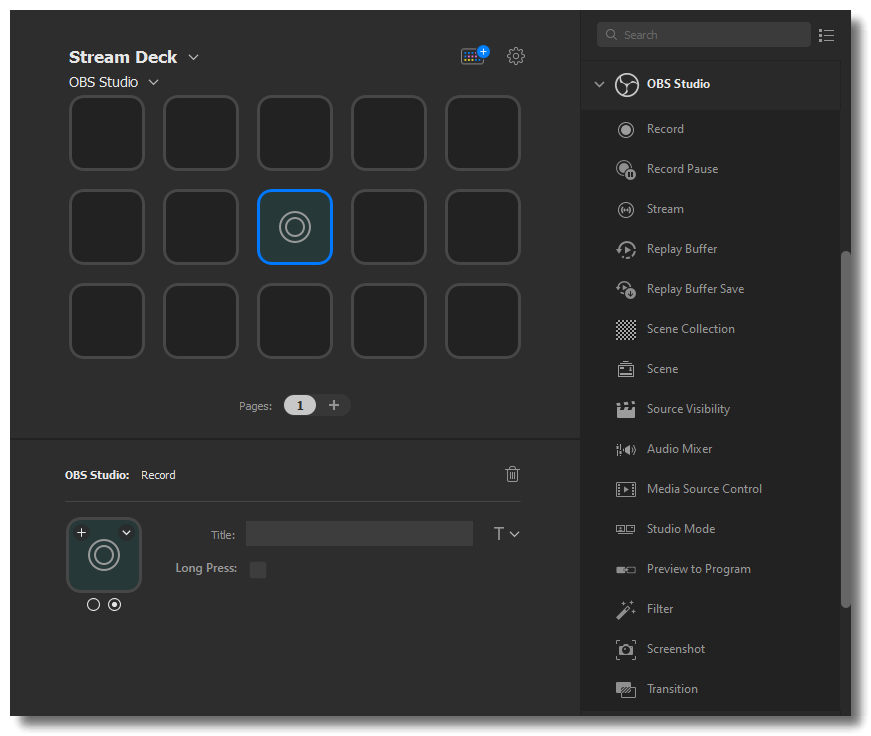
Record lets you start or stop a recording. A Long Press option is available — once enabled, the key needs to be pressed and held for 5 seconds before the recording starts or ends.
OBS Studio - Record Pause
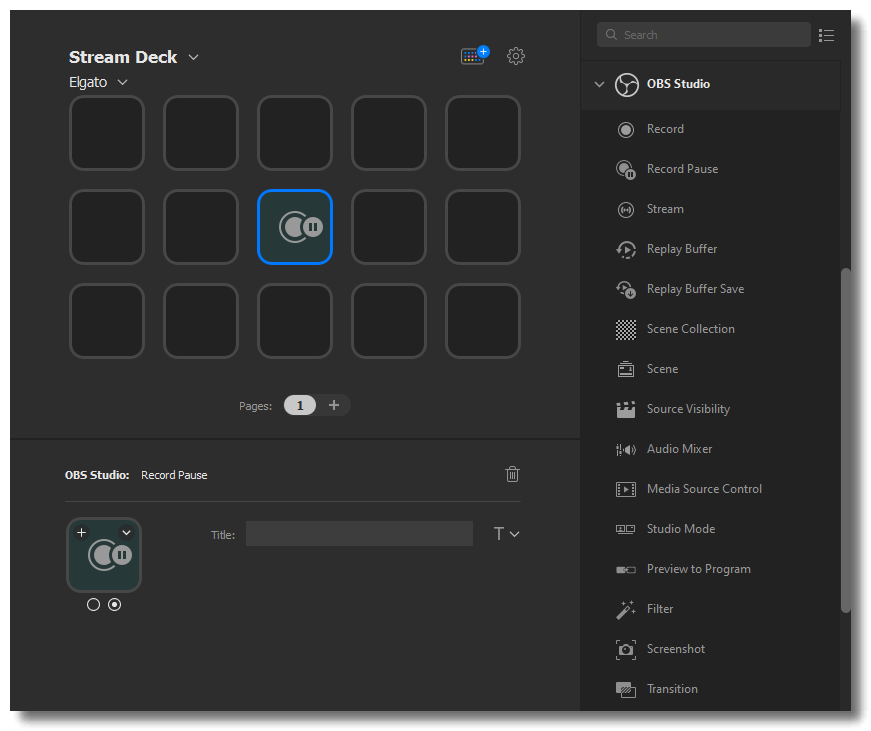
Record Pause lets you pause an active recording.
ℹ️ Record Pause is not supported on all recording formats. Ensure a supported format (FLV, MKV, TS, M3U8.) is selected under OBS Studio Recording Settings.
OBS Studio - Chapter Marker
ℹ️ Allows creating chapters in the recording for later editing.
OBS Studio - Virtual Camera
ℹ️ Allows enabling or disabling Virtual Camera sources.
OBS Studio - Profile
ℹ️ Change which OBS profile is active.
OBS Studio - Scene
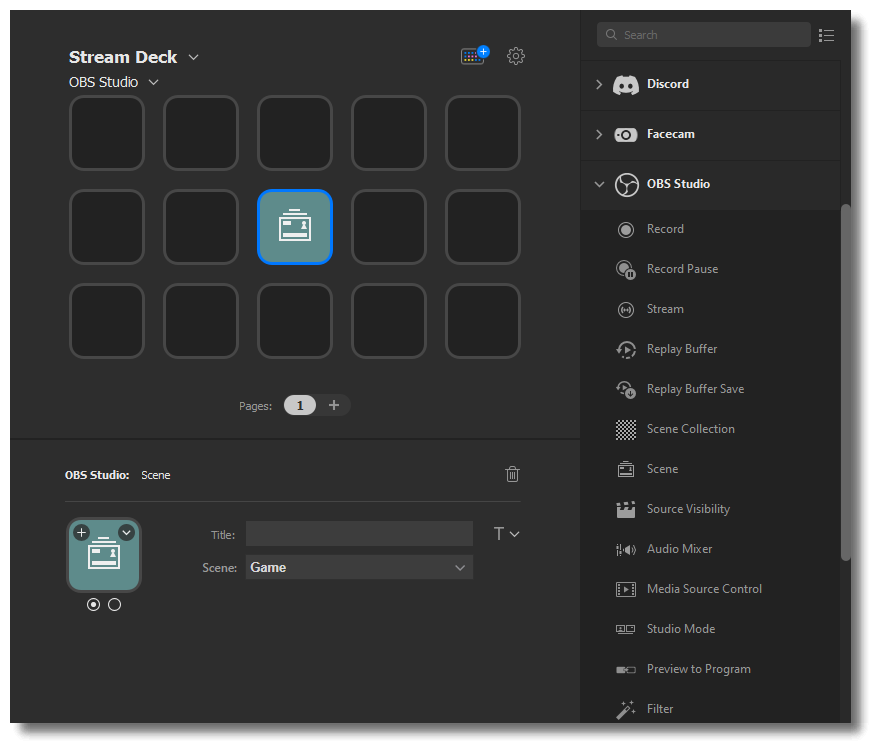
Select a specific Scene.
ℹ️ Pro tip: With many scenes, put them into a folder to stay organized.
OBS Studio - Audio Mixer
Audio Mixer lets you unmute or mute your Source Audio.

OBS Studio - Stream
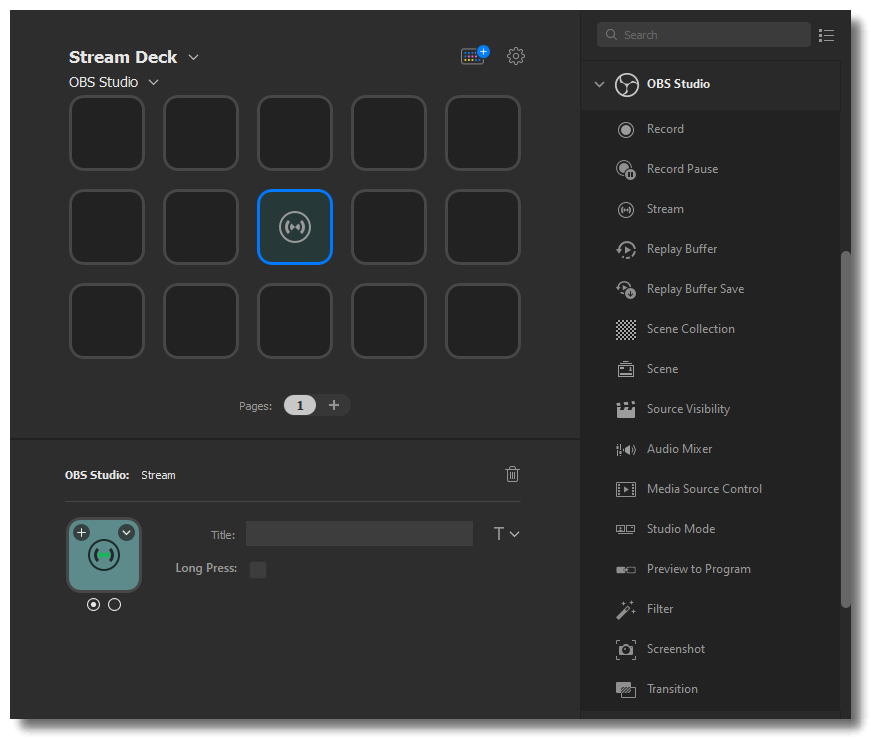
Stream lets you Start and Stop a live stream. A Long Press option is available — once enabled, the key needs to be pressed and held for 5 seconds before the Stream begins or ends.
OBS Studio - Studio Mode
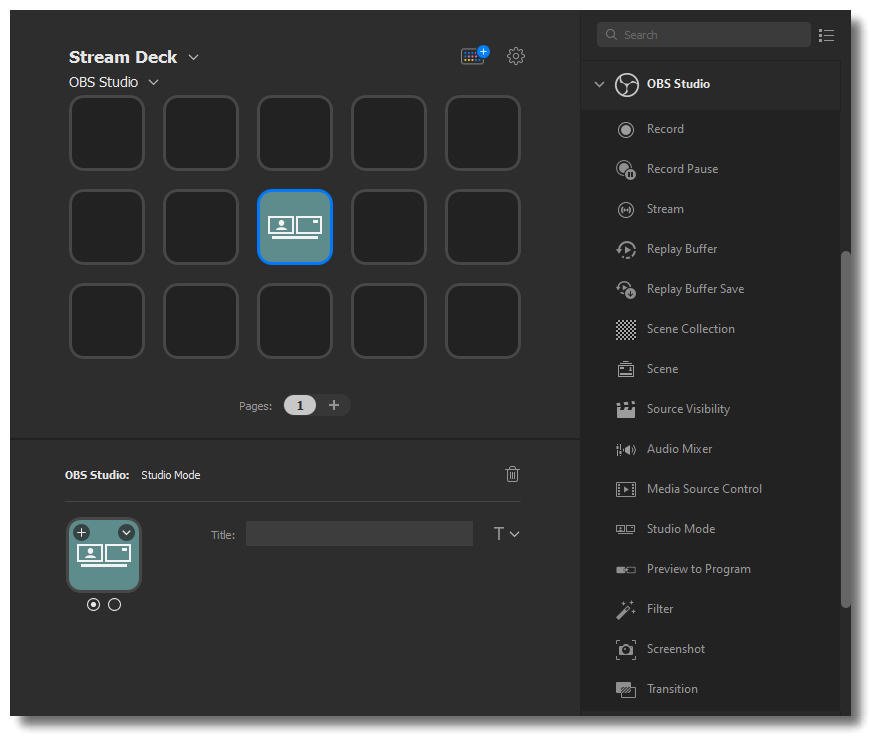
Studio Mode lets you toggle OBS Studio Mode On or Off.
OBS Studio - Source Visibility
Source Visibility lets you show or hide a Source. If the source is hidden, then this Action will show it. If the source is being displayed, then this Action will hide it.
ℹ️ Source Visibility uses the currently selected Scene Collection.

OBS Studio - Replay Buffer
Tapping the key once will toggle Replay Buffer On or Off.
ℹ️ Replay Buffer needs to be enabled. Open OBS Studio > File Menu > Settings > Output > Replay Buffer Tab > Enable Replay Buffer

OBS Studio - Replay Buffer Save
Replay Buffer Save lets you save the last X seconds of video and audio.
ℹ️ To configure Replay Duration: OBS Studio > File Menu > Settings > Output > Replay Buffer Tab > Enable Replay Buffer
OBS Studio - Scene Collection
Switch to a specific Scene Collection. Tapping the key once will switch your entire Scene Collection.
ℹ️ To prevent interruptions, we recommend setting the scene collection before going live or recording.
OBS Studio - Media Source Control
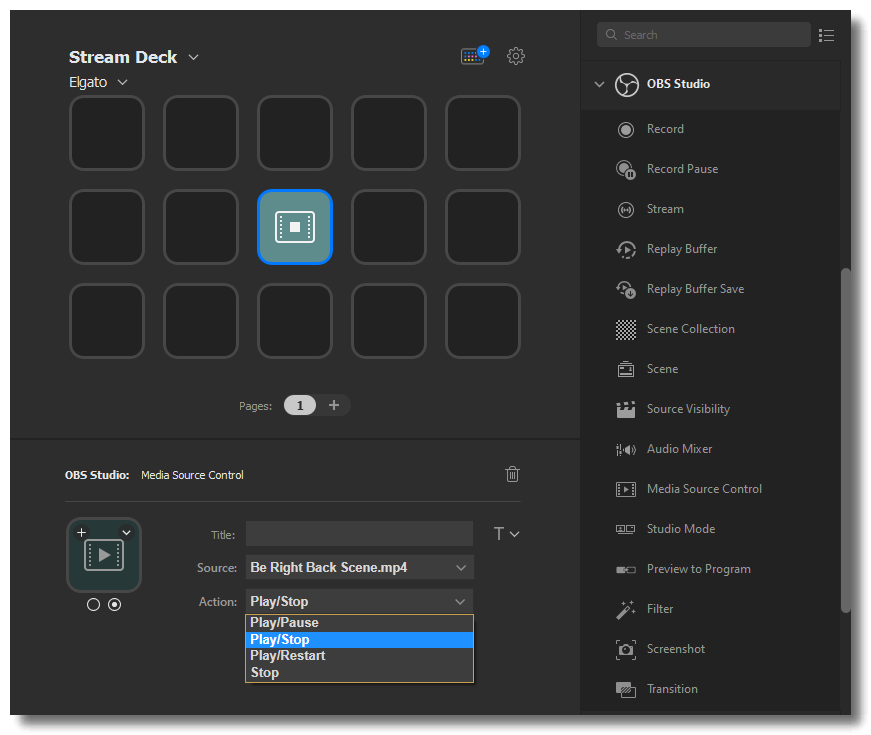
Media Source Control gives you playback control over a media source. Tapping the key once will play the source. Tapping it again will do the secondary Action such as pausing, stopping, or restarting playback.
OBS Studio - Preview to Program
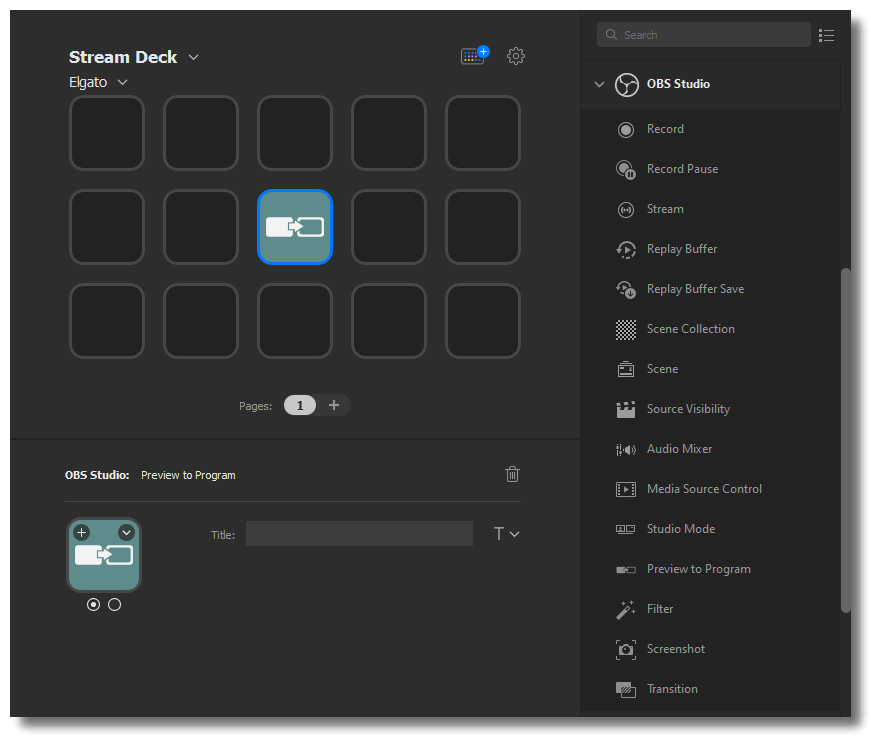
Preview to Program sends the current Preview to Program. Preview is used in Studio Mode to show the next scene, while Program displays the output.
ℹ️ Studio Mode to be enabled for this action.
OBS Studio - Filter
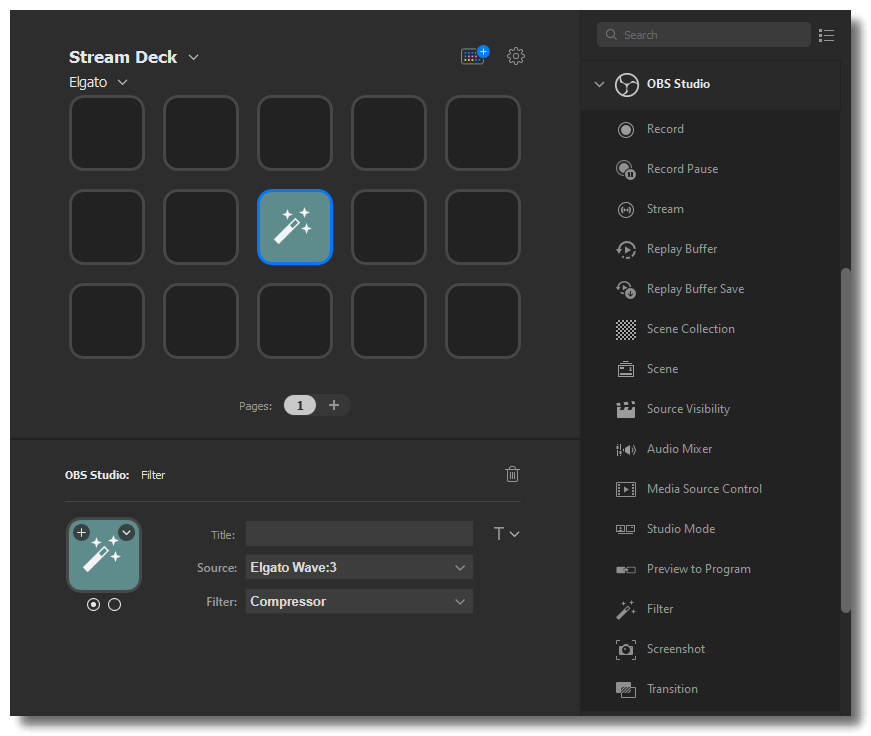
A Filter can be used to toggle a specific filter for a source. Tapping the key once will activate the filter; tapping it again will turn it off.
OBS Studio - Screenshot
A Screenshot will take a snapshot of the current scene. The resolution of the screenshot is identical to the preview resolution.

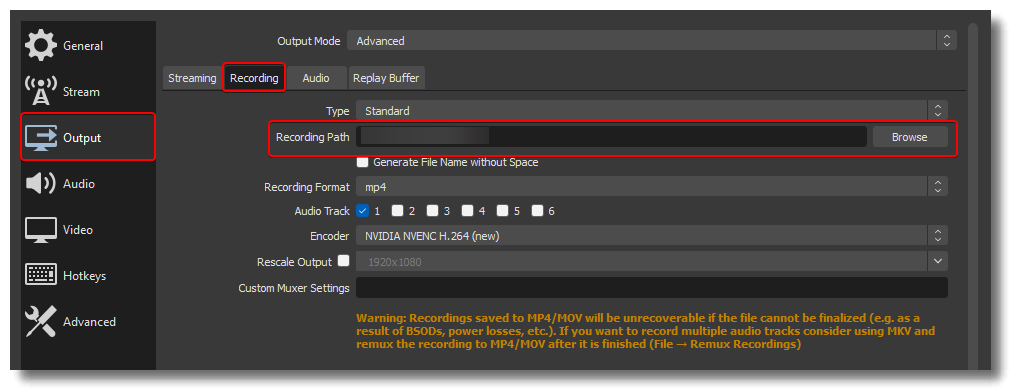
These screenshots will automatically save to the exact location as recorded videos.
OBS Studio - Transition
Adjust your Transition effect. If an effect duration is available, you can customize it directly in Stream Deck or leave it empty to use the default duration.

OBS Studio - Scene Transition
ℹ️ Set different transitions for different scenes with customizable time limits where applicable.
Additional Support or Questions
If OBS Studio is open and the plugin is not loading, check out Elgato Stream Deck – Troubleshooting OBS Integration.
If any assistance is needed, feel free to contact us through the widget at the right.