Wave Go is a convertible wireless mic made up of a mic transmitter (TX), a USB-C receiver (RX), and the Smart Handle. The transmitter clips to your clothing or docks in the Smart Handle for handheld use.
What’s in the box
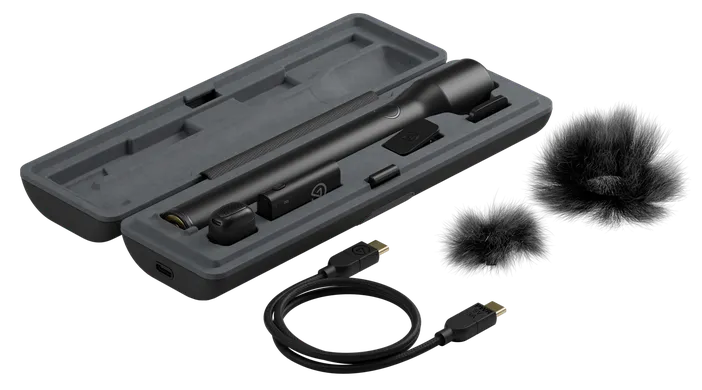
Wave Go includes:
- 1x mic transmitter (TX)
- Smart Handle
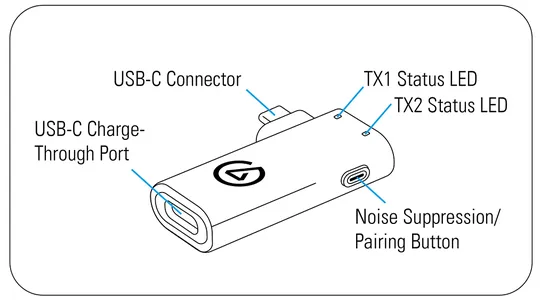
- USB-C receiver (RX)
- Carrying case
- Magnetic plate
- Magnetic clip
- 2x furry windscreens
- Travel pouch
- USB-C charging cable
- Add a second mic with the Wave Go TX (sold separately). It pairs with the same receiver and stores in the Smart Handle.
Download the Wave Go app
The Wave Go app is free and available on iPhone, iPad, and Android. It can be downloaded on the Apple App store or Google Play store
How to set up Wave Go
Wave Go is designed for USB-C devices like your phone or computer. Older iPhones with a Lightning port are not supported, and Wave Go isn’t made for direct use with professional cameras like a DSLR or mirrorless. Wave Go doesn’t record audio onboard. It sends audio straight to your phone or computer.
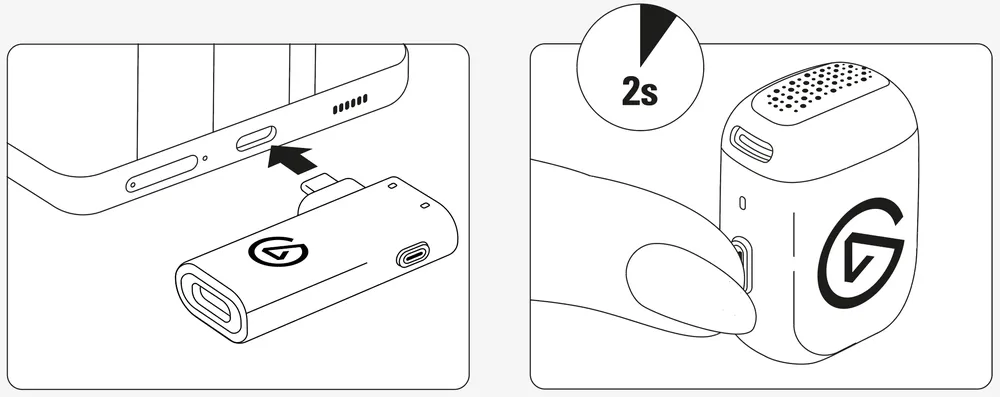
- Plug the USB-C receiver into your phone, tablet, or computer. The receiver powers on automatically.
- Hold the transmitter button for 2 seconds to power on. The LED blinks blue while it connects, then turns solid blue when you’re ready to record.
- Select Wave Go as the microphone in your camera, recording, or video call app.
- Clip the transmitter to your clothing, or dock it in the Smart Handle for handheld use.
Clip-on and handheld modes
The same transmitter works as a clip-on mic or, docked in the Smart Handle, as a handheld mic.
Clip-on mode
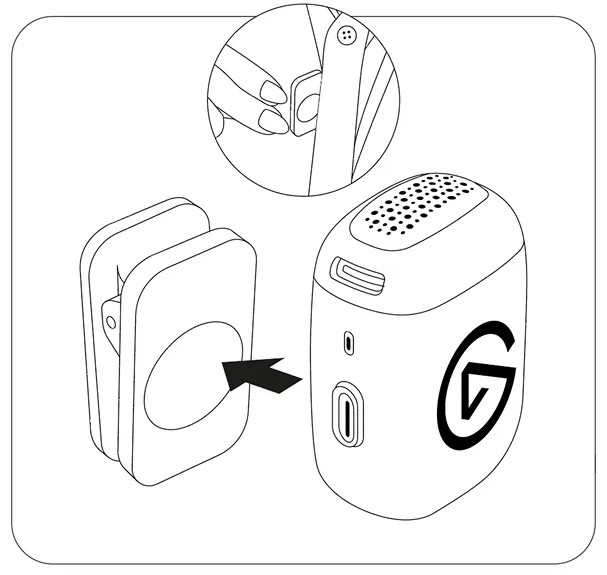
The transmitter weighs 7 g (0.25 oz) and attaches magnetically with one of two included mounts:
- Magnetic clip: For shirts and collars.
- Magnetic plate: For thicker clothing like jackets. Place the plate inside your clothing and set the transmitter on the outside.
The transmitter’s magnetic design also lets it attach to metal surfaces for creative placement.
Point the microphone opening toward your mouth for the clearest sound.
Handheld mode with the Smart Handle
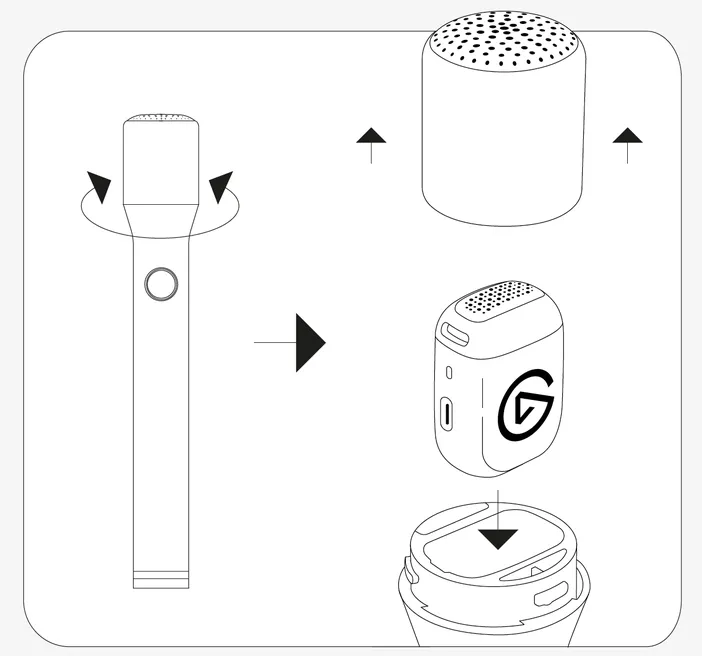
The Smart Handle turns Wave Go into a handheld mic. It has its own button, LED ring, and battery. To dock the transmitter:
- Twist and lift the Smart Handle head.
- Insert the transmitter with the Elgato logo facing the Smart Handle button.
- Place the head back on and twist to lock it in position.
Once docked, the transmitter’s button and LED functions move to the Smart Handle.
EQ Shift switches to the handheld profile as soon as you insert the transmitter. The profile is tuned for the Smart Handle head, so reattaching the head is recommended to get the intended sound.
Battery and charging
The transmitter and Smart Handle each have a built-in rechargeable battery. More information on charging can be found in the Wave Go — Charging Article.
- Transmitter: About 8 hours per charge. A 10-minute quick charge gives about 1 hour of use.
- Smart Handle: Tops up the transmitter whenever it’s docked, for up to 48 hours of total runtime.
How to check the battery level
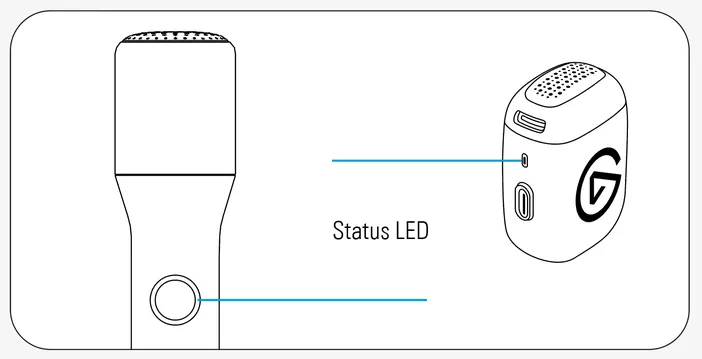
Transmitter: The transmitter battery status shows automatically on the transmitter LED, or on the LED ring at the bottom of the Smart Handle when the transmitter is docked.
| Light | Status |
|---|---|
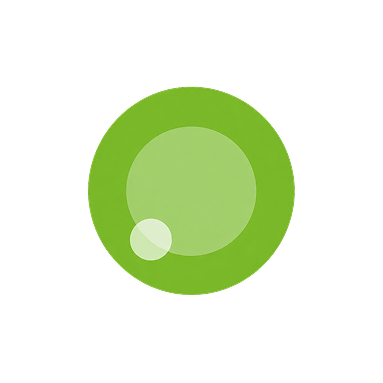 |
Transmitter battery 30% to 100% Solid green |
 |
Transmitter battery 10% to 29% Solid orange |
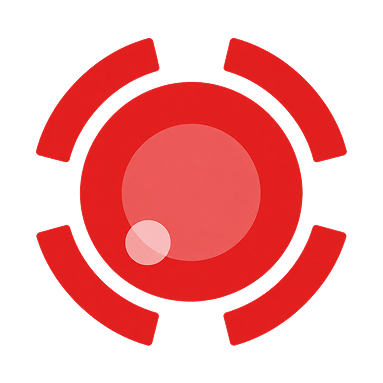 |
Battery low Transmitter: Slow blinking red: the transmitter battery is below 10%. Dock it in the Smart Handle or carrying case to recharge. Smart Handle: Solid red - battery is below 10%. |
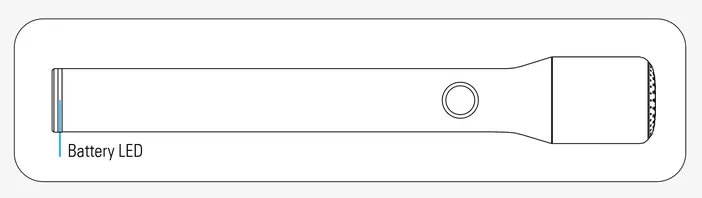
Smart Handle: The LED ring at the bottom of the Smart Handle shows its battery level when you press the Smart Handle button while Wave Go is off, or when you mute or unmute during recording.
| Light | Status |
|---|---|
|
Smart Handle battery 30% to 100% Solid green |
|
Smart Handle battery 10% to 29% Solid orange |
 |
Smart Handle battery 0% to 9% Solid red |
EQ Shift
A mic on your chest picks up your voice differently than one near your mouth. EQ Shift applies a different EQ profile for each mode automatically, so you always get the right tone.
The two profiles:
- Clip-on: Restores clarity and presence lost at chest distance.
- Handheld: Adds warmth and body up close, for a fuller voice.
Controls
Wave Go keeps its controls simple. The transmitter, Smart Handle, and receiver each have a single button, and different presses and holds handle everything from powering on to pairing. When the transmitter is docked, the Smart Handle button takes over.
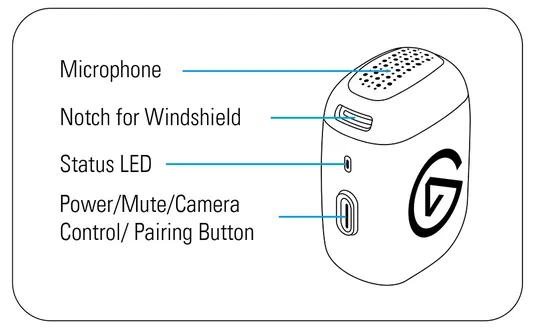
Transmitter and Smart Handle button
| Button | Function |
|---|---|
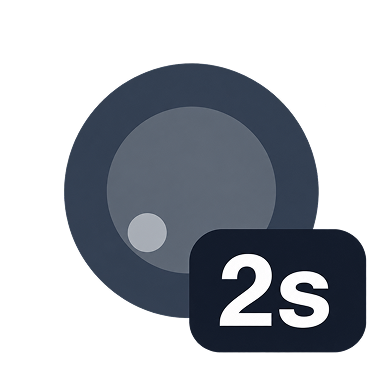 |
On/Off - Hold for 2 seconds Powers the transmitter on or off. The LED blinks blue while searching for its receiver and turns solid blue once connected. |
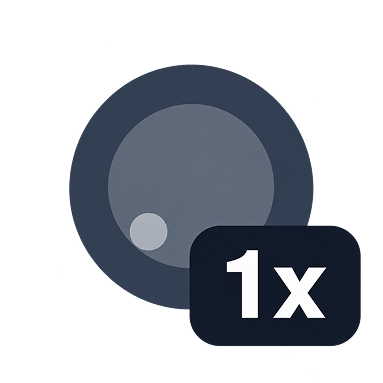 |
Mute - Press Mutes or unmutes audio. The transmitter and receiver LEDs turn solid red while muted. |
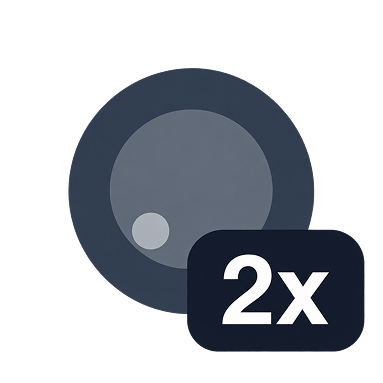 |
Remote camera control - Double-press Starts recording on a connected phone. A compatible camera app must be open. |
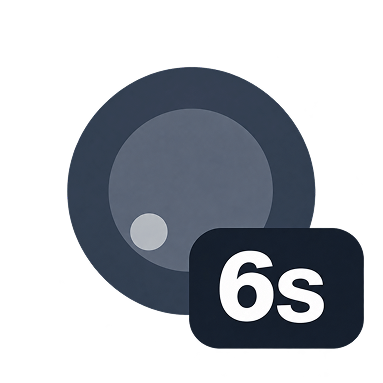 |
Pairing mode - Hold for 6 seconds The receiver must be plugged in and in pairing mode, and the transmitter must be off. |
Receiver button
| Button | Function |
|---|---|
|
Noise cancellation - Press Toggles noise cancellation on and off. The transmitter and receiver LEDs turn solid green while it’s on. For more control, choose from three intensity levels in the Wave Go app. |
|
Pairing mode - Hold for 6 seconds The receiver must be plugged in and the transmitter must be off. The receiver LED blinks fast blue when ready. Then put the transmitter into pairing mode. |
If any assistance is needed, feel free to contact us through the widget at the right.