The following article is for a software that is now considered Legacy (EOL) status and no longer in active development. The information below may be outdated, no longer available or it may not match what is possible with current Elgato products. |
Note: Wave Link has now been updated to version 3. This reimagining has all-new features and an improved interface overall. Wave Link 3 is free, and will also work with a wide variety of microphones, not just those from Elgato.
This article covers the steps to add the Wave Link Stream Mix to Twich Studio.
Adding Wave Link Stream to Twitch Studio
1) In the Twitch Studio interface, click on the Audio Mixer settings

2) Click on the Settings icon next to the sound meter
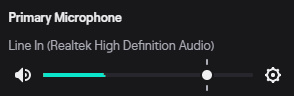
3) From the Device drop down menu, select Wave Link Stream

Leave the volume at the default setting. All volume control is handled by Wave Link.
Leave Audio Effects Off
If game sound, alert sounds and other audio is going through Wave Link stream into Twitch Studio, do not turn on audio effects such as compressor, noise gate or noise suppression, as those will also affect sound and can have a negative impact on sound quality.